github.com/Bouni/kicad-jlcpcb-tools @2026.04.03 sqlite
README
 KiCAD JLCPCB tools






Plugin to generate all files necessary for JLCPCB board fabrication and assembly
- Gerber files
- Excellon files
- BOM file
- CPL file
Furthermore it lets you search the JLCPCB parts database and assign parts directly to the footprints which result in them being put into the BOM file.


Installation 💾
KiCAD PCM
Add my custom repo to the Plugin and Content Manager, the URL is:
https://raw.githubusercontent.com/Bouni/bouni-kicad-repository/main/repository.json

From there you can install the plugin via the GUI.
Git
Simply clone this repo into your scripting/plugins folder.
Windows
cd C:\users\<username>\Documents\kicad\<version>\scripting\plugins\  # <username> is your username, <version> can be 7.0, 8.0, or X.YY depending on the version you use
git clone https://github.com/Bouni/kicad-jlcpcb-tools.git
Linux
cd /home/<username>/.local/share/kicad/<version>/scripting/plugins  # <version> can be 7.0, 8.0, or X.YY depending on the version you use
git clone https://github.com/Bouni/kicad-jlcpcb-tools.git
MacOS
cd ~/Library/Preferences/kicad/scripting/plugins
git clone https://github.com/Bouni/kicad-jlcpcb-tools.git
You may need to create the scripting/plugins folder if it does not exist.
Flatpak :warning:
The Flatpak installation of KiCAD currently does not ship with pip and requests installed. The later is required for the plugin to work. In order to get it working you can run the following 3 commands:
flatpak run --command=sh org.kicad.KiCadpython -m ensurepip --upgrade/var/data/python/bin/pip3 install requests
See issue #94 for more info.
Usage 🥳
To access the plugin choose Tools → External Plugins → JLCPCB Tools from the PCB Editor menus
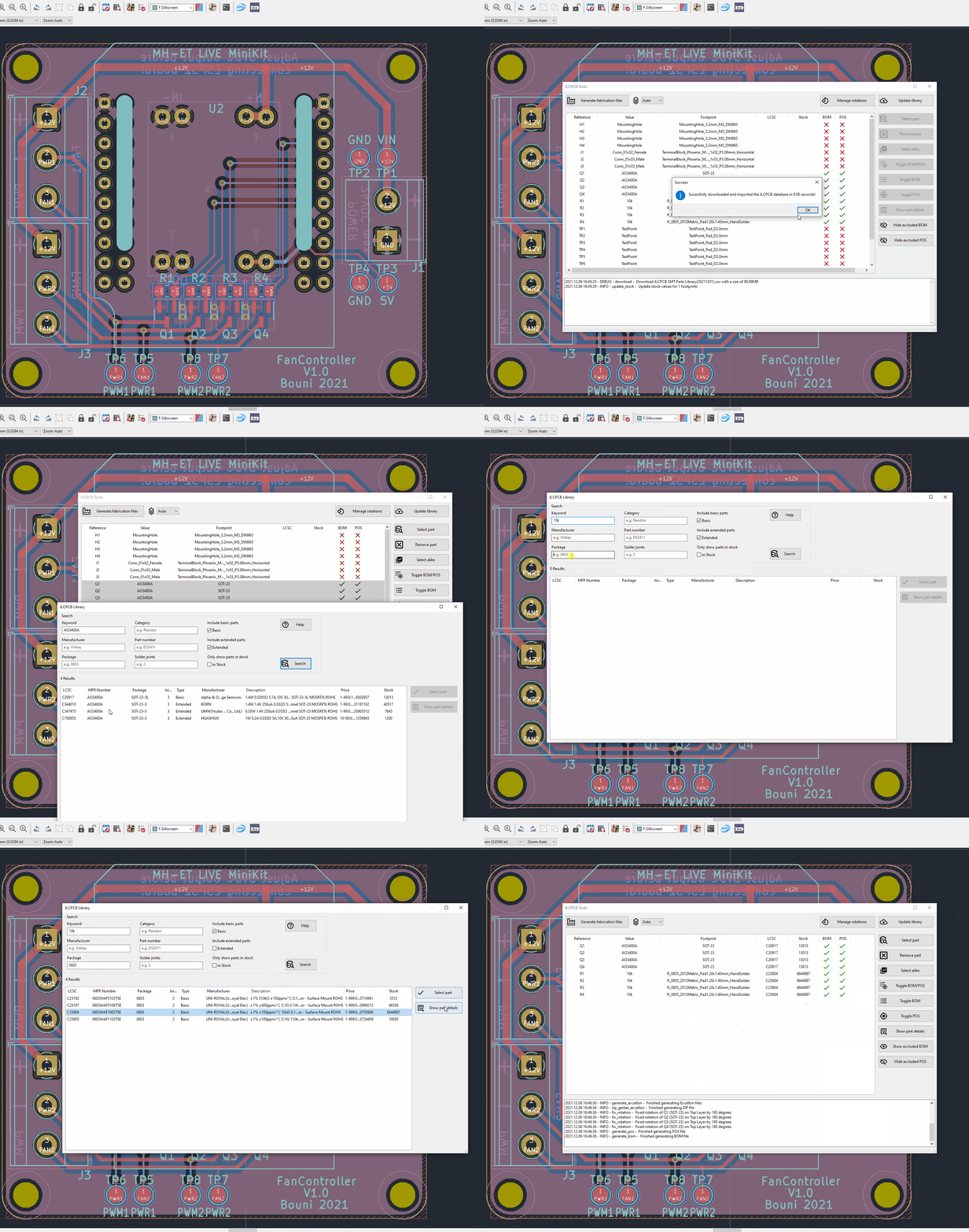
Checkout this screencast, it shows quickly how to use this plugin:
Keyboard shortcuts
Windows can be closed with ctrl-w/ctrl-q/command-w/command-w (OS dependent) and escape. Pressing enter in the keyword text box will start a search.
Toggle BOM / CPL attributes
You can easily toggle the exclude from BOM and exclude from CPL attributes of one or multiple footprints.
Select LCSC parts from the JLCPCB parts database
Select one or multiple footprints, click select part. You can select parts with equal value and footprint using the Select alike button. In the upcoming modal dialog, search for parts, select the one of your choice and click select part. The LCSC number of your selection will then be assigned to the footprints.

Generate fabrication data
Generate all necessary assembly files for your board with a simple click.
A new directory called jlcpcb is created, and in there, two separate folders are created, gerber and production_files.
In the gerber folder all necessary *.gbr and *.drl files are generated and zipped into the production_files folder, ready for upload to JLCPCB.
The zipfile is named GERBER-<projectname>.zip
Also in the production_files folder, two files are generated, BOM-<projectname>.csv and CPL-<projectname>.csv.
Footprints are included into the BOM and CPL files according to their exclude from BOM and exclude from POS attributes.
Optional pre/post generation hook scripts can be configured in settings.
- The pre-hook runs before generation and can block generation on failure (with Continue/Cancel prompt).
- The post-hook runs only after successful generation.
See HOOKS.md for configuration details and available environment variables.

Export Additional JLC Specific Layers
Some boards you have manufactured will require additional layers in your Gerber. For example, when manufacturing flex PCBs with a stiffener, JLC requires a layer outlining the stiffener layer (top/bottom), dimensions and the stiffener material properties (material, thickness etc). Export these additional JLC specific layers in your production files with a simple modification.
Additional layers can be exported by creating layers with JLC_ as the prefix of the layer name. You can access and edit the layer names in Board Setup/Board Stackup/Board Editor Layers
This tool will automatically export all additional layers with the JLC_ prefix and add them to the production files in GERBER-<projectname>.zip

Footprint rotation correction
JLCPCB seems to need corrected rotation information. @matthewlai implemented that in his JLCKicadTools and I adopted his work in this plugin as well. You can download Matthews file from GitHub and manage your own corrections in the Rotation manager.
Icons
This plugin makes use of a lot of icons from the excellent Material Design Icons
Development
- Fork repo
- Git clone forked repo
- Install pre-commit
pip install pre-commit - Setup pre-commit
pre-commit run - Create feature branch
git switch -c my-awesome-feature - Make your changes
- Commit your changes
git commit -m "Awesome new feature" - Push to GitHub
git push - Create PR
Make sure you make use of pre-commit hooks in order to format everything nicely with black
In the near future I'll add ruff / pylint and possibly other pre-commit-hooks that enforce nice and clean code style.
How to rebuild the parts database
The parts database is rebuilt by the update_parts_database.yml GitHub workflow
You can reference the steps in the 'Update database' section for the commands to run locally.
python libraries
lib/ contains the necessary python packages that may not be a part of the KiCad python distribution.
These packages include:
- packaging
To install a package, such as 'packaging':
pip install packaging --target ./lib
To update these packages:
pip install packaging --upgrade --target ./lib
Future versions of KiCad may have support for a requires.txt to automate this process.
Standalone mode
Allows the plugin UI to be started without KiCAD, enabling debugging with an IDE like pycharm / vscode.
Standalone mode is under development.
Limitations
- All board / footprint / value data are hardcoded stubs, see standalone_impl.py
How to use
To use the plugin in standlone mode you'll need to identify three pieces of information specific to your Kicad version, plugin path, and OS.
Python
The {KiCad python} should be used, this can be found at different locations depending on your system:
| OS | Kicad python |
|---|---|
| Mac | /Applications/KiCad/KiCad.app/Contents/Frameworks/Python.framework/Versions/3.9/bin/python3 |
| Linux | /usr/bin/python3 |
| Windows | C:\Program Files\KiCad\8.0\bin\python.exe |
Working directory
The {working directory} should be your plugins directory, ie:
| OS | Working dir |
|---|---|
| Mac | ~/Documents/KiCad//scripting/plugins/ |
| Linux | ~/.local/share/kicad//scripting/plugins/ |
| Windows | %USERPROFILE%\Documents\KiCad\\scripting\plugins\ |
[!NOTE]
can be 7.0, 8.0, or X.YY depending on the version you use
Plugin folder name
The {kicad-jlcpcb-tools folder name} should be the name of the kicad-jlcpcb-tools folder.
- For Kicad managed plugins this may be like
com_github_bouni_kicad-jlcpcb-tools
- If you are developing kicad-jlcpcb-tools this is the folder you cloned the kicad-jlcpcb-tools as.
Command line
- Change to the working directory as noted above
- Run the python interpreter with the {kicad-jlcpcb-tools folder name} folder as a module.
For example:
cd {working directory}
{kicad_python} -m {kicad-jlcpcb-tools folder name}
For example on Mac:
/Applications/KiCad/KiCad.app/Contents/Frameworks/Python.framework/Versions/3.9/bin/python3 -m kicad-jlcpcb-tools
For example on Linux:
cd ~/.local/share/kicad/8.0/scripting/plugins/ && python -m kicad-jlcpcb-tools
For example on Windows:
& 'C:\Program Files\KiCad\8.0\bin\python.exe' -m kicad-jlcpcb-tools
IDE
- Configure the command line to be '{kicad_python} -m {kicad-jlcpcb-tools folder name}'
- Set the working directory to {working directory}
If using PyCharm or Jetbrains IDEs, set the interpreter to Kicad's python, {Kicad python} and under 'run configuration' select Python.
Click on 'script path' and change instead to 'module name', entering the name of the kicad-jlcpcb-tools folder, {kicad-jlcpcb-tools folder name}.
How to release new versions of this plugin
bouni-kicad-repository contains the files for the latest version of the plugin, in the format KiCAD expects from external plugins.
To release a new version of this plugin:
- In the kicad-jlcpcb-plugin repository:
- Visit the releases page

- Click on 'Choose a tag', enter the next release number, say 2025.04.01 for example, and click on 'Create Tag'

- Click 'Generate release notes'

- If the release notes looks good, click on 'Publish release'

- Automatically the new release will trigger the 'kicad-pcm' workflow which will:
- Pull the latest plugin tag
- Create the appropriate pcm archive
- Upload the zip as an asset to a new GitHub release
- benc-uk/workflow-dispatch@v1 is used to trigger the 'Rebuild repository' workflow in bouni-kicad-repository
- Automatically in the bouni-kicad-repository, the 'Rebuild repository' (rebuild.yml) workflow runs 'generate.py'
- generate.py updates .json and the latest .zip file using the release assets from the kicad-jlcpcb-plugin repository
- The plugin should now be visible to users via the plugin manager.
Core symbols most depended-on inside this repo
loadBitmapScaledShape
Languages
Modules by API surface
Dependencies from manifests, versioned
For agents
$ claude mcp add kicad-jlcpcb-tools \
  -- python -m otcore.mcp_server <graph>