github.com/yaronn/blessed-contrib @v4.8.17
README
blessed-contrib
Build dashboards (or any other application) using ascii/ansi art and javascript.
Friendly to terminals, ssh and developers. Extends blessed with custom drawille and other widgets.
You should also check WOPR: a markup for creating terminal reports, presentations and infographics.
Contributors:
Yaron Naveh (@YaronNaveh) Chris (@xcezzz) Miguel Valadas (@mvaladas)
Demo (full size):
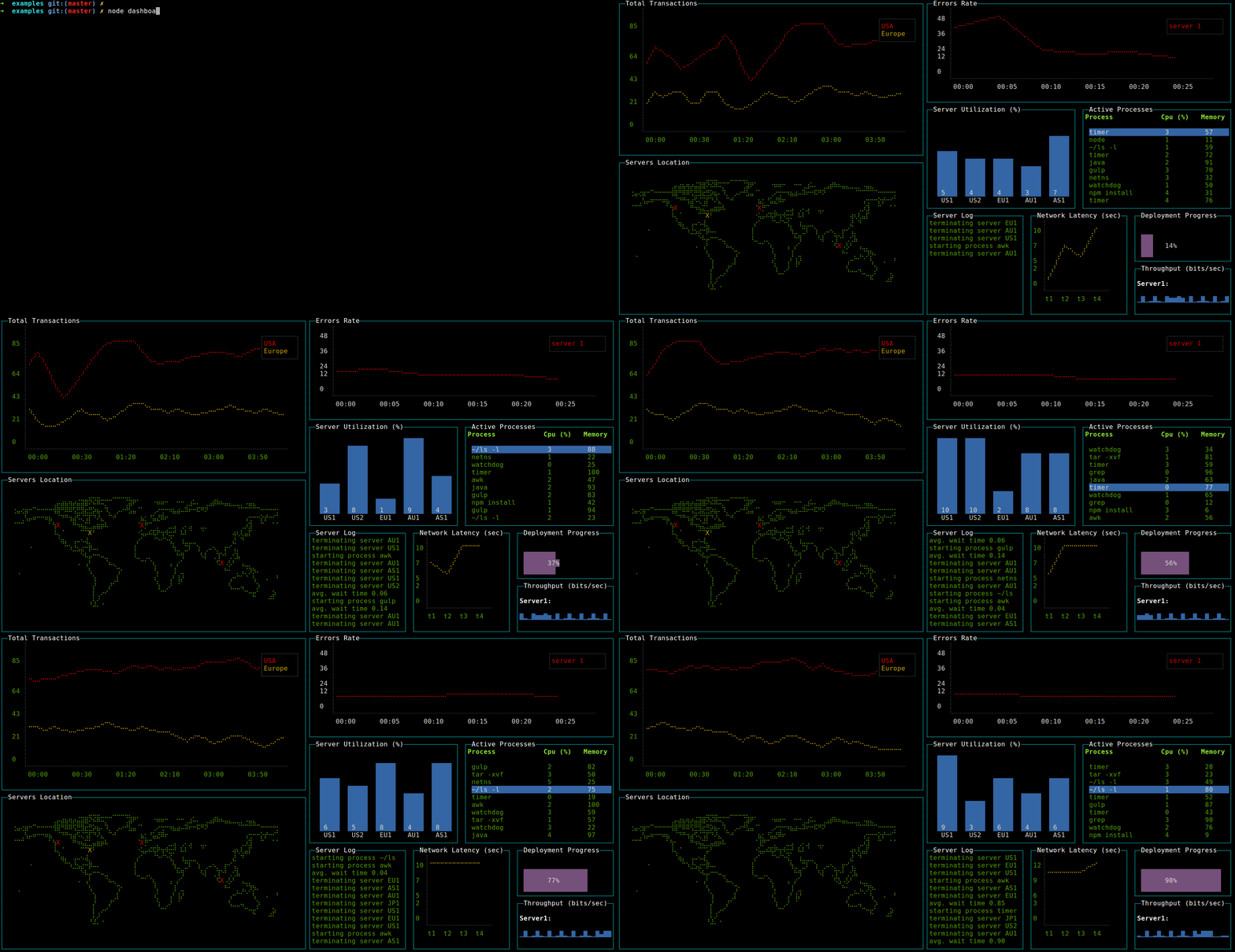


Running the demo
git clone https://github.com/yaronn/blessed-contrib.git
cd blessed-contrib
npm install
node ./examples/dashboard.js
Works on Linux, OS X and Windows. For Windows follow the pre requisites.
Installation (to build custom projects)
npm install blessed blessed-contrib
Usage
You can use any of the default widgets of blessed (texts, lists and etc) or the widgets added in blessed-contrib (described below). A layout is optional but useful for dashboards. The widgets in blessed-contrib follow the same usage pattern:
   var blessed = require('blessed')
     , contrib = require('blessed-contrib')
     , screen = blessed.screen()
     , line = contrib.line(
         { style:
           { line: "yellow"
           , text: "green"
           , baseline: "black"}
         , xLabelPadding: 3
         , xPadding: 5
         , label: 'Title'})
     , data = {
         x: ['t1', 't2', 't3', 't4'],
         y: [5, 1, 7, 5]
      }
   screen.append(line) //must append before setting data
   line.setData([data])

   screen.key(['escape', 'q', 'C-c'], function(ch, key) {
     return process.exit(0);
   });

   screen.render()
See below for a complete list of widgets.
Widgets
Line Chart

   var line = contrib.line(
         { style:
           { line: "yellow"
           , text: "green"
           , baseline: "black"}
         , xLabelPadding: 3
         , xPadding: 5
         , showLegend: true
         , wholeNumbersOnly: false //true=do not show fraction in y axis
         , label: 'Title'})
   var series1 = {
         title: 'apples',
         x: ['t1', 't2', 't3', 't4'],
         y: [5, 1, 7, 5]
      }
   var series2 = {
         title: 'oranges',
         x: ['t1', 't2', 't3', 't4'],
         y: [2, 1, 4, 8]
      }
   screen.append(line) //must append before setting data
   line.setData([series1, series2])
Examples: simple line chart, multiple lines, 256 colors
Bar Chart

    var bar = contrib.bar(
       { label: 'Server Utilization (%)'
       , barWidth: 4
       , barSpacing: 6
       , xOffset: 0
       , maxHeight: 9})
    screen.append(bar) //must append before setting data
    bar.setData(
       { titles: ['bar1', 'bar2']
       , data: [5, 10]})
Stacked Bar Chart

    bar = contrib.stackedBar(
       { label: 'Server Utilization (%)'
       , barWidth: 4
       , barSpacing: 6
       , xOffset: 0
       //, maxValue: 15
       , height: "40%"
       , width: "50%"
       , barBgColor: [ 'red', 'blue', 'green' ]})
    screen.append(bar)
    bar.setData(
       { barCategory: ['Q1', 'Q2', 'Q3', 'Q4']
       , stackedCategory: ['US', 'EU', 'AP']
       , data:
          [ [ 7, 7, 5]
          , [8, 2, 0]
          , [0, 0, 0]
          , [2, 3, 2] ]
       })
Map

   var map = contrib.map({label: 'World Map'})
   map.addMarker({"lon" : "-79.0000", "lat" : "37.5000", color: "red", char: "X" })
Gauge

   var gauge = contrib.gauge({label: 'Progress', stroke: 'green', fill: 'white'})
   gauge.setPercent(25)
Stacked Gauge

Either specify each stacked portion with a percent and stroke...
   var gauge = contrib.gauge({label: 'Stacked '})
   gauge.setStack([{percent: 30, stroke: 'green'}, {percent: 30, stroke: 'magenta'}, {percent: 40, stroke: 'cyan'}])
Or, you can just supply an array of numbers and random colors will be chosen.
   var gauge = contrib.gauge({label: 'Stacked Progress'})
   gauge.setStack([30,30,40])
Donut

   var donut = contrib.donut({
    label: 'Test',
    radius: 8,
    arcWidth: 3,
    remainColor: 'black',
    yPadding: 2,
    data: [
      {percent: 80, label: 'web1', color: 'green'}
    ]
  });
Data passed in uses percent and label to draw the donut graph. Color is optional and defaults to green.
   donut.setData([
    {percent: 87, label: 'rcp','color': 'green'},
    {percent: 43, label: 'rcp','color': 'cyan'},
   ]);
Updating the donut is as easy as passing in an array to setData using the same array format as in the constructor. Pass in as many objects to the array of data as you want, they will automatically resize and try to fit. However, please note that you will still be restricted to actual screen space.
LCD Display

   var lcd = contrib.lcd(
     { segmentWidth: 0.06 // how wide are the segments in % so 50% = 0.5
     , segmentInterval: 0.11 // spacing between the segments in % so 50% = 0.550% = 0.5
     , strokeWidth: 0.11 // spacing between the segments in % so 50% = 0.5
     , elements: 4 // how many elements in the display. or how many characters can be displayed.
     , display: 321 // what should be displayed before first call to setDisplay
     , elementSpacing: 4 // spacing between each element
     , elementPadding: 2 // how far away from the edges to put the elements
     , color: 'white' // color for the segments
     , label: 'Storage Remaining'})
    lcd.setDisplay(23 + 'G'); // will display "23G"
    lcd.setOptions({}) // adjust options at runtime
Please see the examples/lcd.js for an example. The example provides keybindings to adjust the segmentWidth and segmentInterval and strokeWidth in real-time so that you can see how they manipulate the look and feel.
Rolling Log

   var log = contrib.log(
      { fg: "green"
      , selectedFg: "green"
      , label: 'Server Log'})
   log.log("new log line")
Picture
(Also check the new blessed image implementation which has several benefits over this one.)

    var pic = contrib.picture(
       { file: './flower.png'
       , cols: 25
       , onReady: ready})
    function ready() {screen.render()}
note: only png images are supported
Sparkline

   var spark = contrib.sparkline(
     { label: 'Throughput (bits/sec)'
     , tags: true
     , style: { fg: 'blue' }})

   sparkline.setData(
   [ 'Sparkline1', 'Sparkline2'],
   [ [10, 20, 30, 20]
   , [40, 10, 40, 50]])
Table

   var table = contrib.table(
     { keys: true
     , fg: 'white'
     , selectedFg: 'white'
     , selectedBg: 'blue'
     , interactive: true
     , label: 'Active Processes'
     , width: '30%'
     , height: '30%'
     , border: {type: "line", fg: "cyan"}
     , columnSpacing: 10 //in chars
     , columnWidth: [16, 12, 12] /*in chars*/ })

   //allow control the table with the keyboard
   table.focus()

   table.setData(
   { headers: ['col1', 'col2', 'col3']
   , data:
      [ [1, 2, 3]
      , [4, 5, 6] ]})
Tree

   var tree = contrib.tree({fg: 'green'})

   //allow control the table with the keyboard
   tree.focus()

   tree.on('select',function(node){
     if (node.myCustomProperty){
       console.log(node.myCustomProperty);
     }
     console.log(node.name);
   }

   // you can specify a name property at root level to display root
   tree.setData(
   { extended: true
   , children:
     {
       'Fruit':
       { children:
         { 'Banana': {}
         , 'Apple': {}
         , 'Cherry': {}
         , 'Exotics': {
             children:
             { 'Mango': {}
             , 'Papaya': {}
             , 'Kiwi': { name: 'Kiwi (not the bird!)', myCustomProperty: "hairy fruit" }
             }}
         , 'Pear': {}}}
     , 'Vegetables':
       { children:
         { 'Peas': {}
         , 'Lettuce': {}
         , 'Pepper': {}}}}})
Options
- keys : Key to expand nodes. Default : ['enter','default']
- extended : Should nodes be extended/generated by default? Be careful with this setting when using a callback function. Default : false
- template :
- extend : Suffix "icon" for closed node. Default : '[+]'
- retract : Suffix "icon" for opened node. Default : '[-]'
- lines : Show lines in tree. Default : true
Nodes
Every node is a hash and it can have custom properties that can be used in "select" event callback. However, there are several special keys :
- name
- Type :
string - Desc : Node name
- If the node isn't the root and you don't specify the name, will be set to hash key
- Example :
{ name: 'Fruit'} - children
- Type :
hashorfunction(node){ return children } - Desc : Node children.
- The function must return a hash that could have been used as children property
- If you use a function, the result will be stored in
node.childrenContentandchildren - Example :
- Hash :
{'Fruit':{ name: 'Fruit', children:{ 'Banana': {}, 'Cherry': {}}}} - Function : see
examples/explorer.js
- Hash :
- childrenContent
- Type :
hash - Desc : Children content for internal usage DO NOT MODIFY
- If
node.childrenis a hash,node.children===node.childrenContent - If
node.childrenis a function, it's used to store thenode.children()result - You can read this property, but you should never write it.
- Usually this will be used to check
if(node.childrenContent)in yournode.childrenfunction to generate children only once - extended
- Type :
boolean - Desc : Determine if this node is extended
- No effect when the node have no child
- Default value for each node will be
treeInstance.options.extendedif the nodeextendedoption is not set - Example :
{'Fruit':{ name: 'Fruit', extended: true, children:{ 'Banana': {}, 'Cherry': {}}}}
Markdown

   var markdown = contrib.markdown()
   markdown.setMarkdown('# Hello \n blessed-contrib renders markdown using `marked-terminal`')
Colors
You can use 256 colors (source):
  function randomColor() {
    return [Math.random() * 255,Math.random()*255, Math.random()*255]
  }

  line = contrib.line(
  {
    ...
    , style: { line: randomColor(), text: randomColor(), baseline: randomColor() }
  })
Layouts
Grid
A grid layout can auto position your elements in a grid layout. When using a grid, you should not create the widgets, rather specify to the grid which widget to create and with which params. Each widget can span multiple rows and columns.
   var screen = blessed.screen()

   var grid = new contrib.grid({rows: 12, cols: 12, screen: screen})

   //grid.set(row, col, rowSpan, colSpan, obj, opts)
   var map = grid.set(0, 0, 4, 4, contrib.map, {label: 'World Map'})
   var box = grid.set(4, 4, 4, 4, blessed.box, {content: 'My Box'})

   screen.render()
Carousel
A carousel layout switches between different views based on time or keyboard activity. One use case is an office dashboard with rotating views:
`````javascript var blessed = require('blessed') , contrib = require('./') , screen = blessed.screen()
function page1(screen) {
   var map = contrib.map()
   screen.append(map)
}

function page2(screen) {
  var line = contrib.line(
   { width: 80
   , height: 30
   , left: 15
   , top: 12
   , xPadding: 5
   , label: 'Title'
   })

  var data = [ { title: 'us-east',
             x: ['t1', 't2', 't3', 't4'],
             y: [0, 0.0695652173913043, 0.11304347826087, 2],
             style: {
              line: 'red'
             }
           }
        ]

  screen.append(line)
  line.setData(data)
}

screen.key(['escape', 'q', 'C-c'], function(ch, key) {
  return
Extension points exported contracts — how you extend this code
GridOptions (Interface)Core symbols most depended-on inside this repo
randomColorShape
Languages
Modules by API surface
Dependencies from manifests, versioned
For agents
$ claude mcp add blessed-contrib \
  -- python -m otcore.mcp_server <graph>