github.com/yomotsu/camera-controls @v3.1.3
Chat with this repoBrowse by type
What it actually does AI analysis from the code graph — generated when you open this
README
camera-controls
A camera control for three.js, similar to THREE.OrbitControls yet supports smooth transitions and more features.


Examples
| camera move | default user input (Configurable) |
|---|---|
| Orbit rotation | left mouse drag / touch: one-finger move |
| Dolly | middle mouse drag, or mousewheel / touch: two-finger pinch-in or out |
| Truck (Pan) | right mouse drag / touch: two-finger move or three-finger move |
- basic
- fit-and-padding
- fit-to-rect
- fit-to-bounding-sphere
- infinity dolly
- boundary
- focal offset
- click to set orbit point
- look in the point direction
- viewport within the canvas
- multiple camera-controls and viewport
- z-up camera
- orthographic
- event attach / detach
- user input config
- mouse drag with modifier keys
- combined gestures
- keyboard events
- rest and sleep events
- changing the cursor
- collision
- collision (custom)
- first-person
- third-person (with meshwalk)
- pointer lock
- auto rotate
- view offset translate
- camera shake effect
- rotate with time duration and easing (with gsap)
- path animation (with gsap)
- complex transitions with
await - set view padding
- WebWorker (OffscreenCanvas)
- outside of iframe dragging
- in react-three-fiber (simplest)
- in react-three-fiber (drei official) (see doc)
Usage
(The below code is for three.js users. If you use react-three-fiber (aka R3F), r3f-ready camera-controls is available on @react-three/drei
import * as THREE from 'three';
import CameraControls from 'camera-controls';

CameraControls.install( { THREE: THREE } );

// snip ( init three scene... )
const clock = new THREE.Clock();
const camera = new THREE.PerspectiveCamera( 60, width / height, 0.01, 1000 );
const cameraControls = new CameraControls( camera, renderer.domElement );

( function anim () {

    // snip
    const delta = clock.getDelta();
    const hasControlsUpdated = cameraControls.update( delta );

    requestAnimationFrame( anim );

    // you can skip this condition to render though
    if ( hasControlsUpdated ) {

        renderer.render( scene, camera );

    }

} )();
Important!
You must install three.js before using camera-controls. Not doing so will lead to runtime errors (undefined references to THREE).
Before creating a new CameraControls instance, call:
CameraControls.install( { THREE: THREE } );
You can then proceed to use CameraControls.
Note: If you do not wish to use the entire three.js to reduce file size(tree-shaking for example), make a subset to install.
import {
    Vector2,
    Vector3,
    Vector4,
    Quaternion,
    Matrix4,
    Spherical,
    Box3,
    Sphere,
    Raycaster,
} from 'three';

const subsetOfTHREE = {
    Vector2   : Vector2,
    Vector3   : Vector3,
    Vector4   : Vector4,
    Quaternion: Quaternion,
    Matrix4   : Matrix4,
    Spherical : Spherical,
    Box3      : Box3,
    Sphere    : Sphere,
    Raycaster : Raycaster,
};

CameraControls.install( { THREE: subsetOfTHREE } );
Constructor
CameraControls( camera, domElement )
camerais aTHREE.PerspectiveCameraorTHREE.OrthographicCamerato be controlled.domElementis aHTMLElementfor draggable area. (optional. if domElement is omitted here, can be connect later with.connect())
Terms
Orbit rotations
CameraControls uses Spherical Coordinates for orbit rotations.
If your camera is Y-up, the Azimuthal angle will be the angle for y-axis rotation and the Polar angle will be the angle for vertical position.
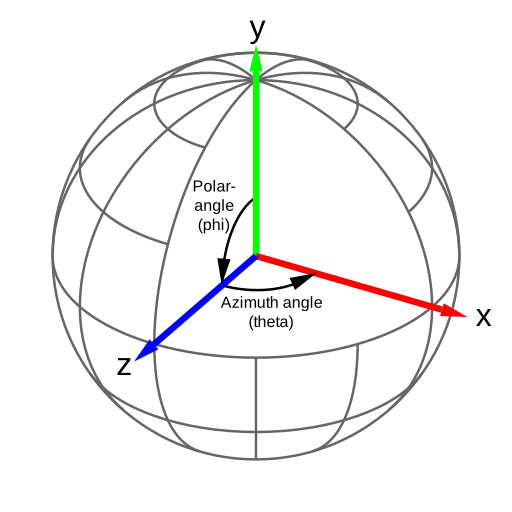
Dolly vs Zoom
- A Zoom involves changing the lens focal length. In three.js, zooming is actually changing the camera FOV, and the camera is stationary (doesn't move).
- A Dolly involves physically moving the camera to change the composition of the image in the frame.
See the demo
Properties
| Name | Type | Default | Description |
|---|---|---|---|
.camera |
THREE.Perspective \| THREE.Orthographic |
N/A | The camera to be controlled |
.enabled |
boolean |
true |
Whether or not the controls are enabled. |
.active |
boolean |
false |
Returns true if the controls are active updating. |
.currentAction |
ACTION |
N/A | Getter for the current ACTION. |
.distance |
number |
N/A | Current distance. |
.minDistance |
number |
Number.EPSILON |
Minimum distance for dolly. The value must be higher than 0 |
.maxDistance |
number |
Infinity |
Maximum distance for dolly. |
.minZoom |
number |
0.01 |
Minimum camera zoom. |
.maxZoom |
number |
Infinity |
Maximum camera zoom. |
.polarAngle |
number |
N/A | Current polarAngle in radians. |
.minPolarAngle |
number |
0 |
In radians. |
.maxPolarAngle |
number |
Math.PI |
In radians. |
.azimuthAngle |
number |
N/A | current azimuthAngle in radians ¹. |
.minAzimuthAngle |
number |
-Infinity |
In radians. |
.maxAzimuthAngle |
number |
Infinity |
In radians. |
.boundaryFriction |
number |
0.0 |
Friction ratio of the boundary. |
.boundaryEnclosesCamera |
boolean |
false |
Whether camera position should be enclosed in the boundary or not. |
.smoothTime |
number |
0.25 |
Approximate time in seconds to reach the target. A smaller value will reach the target faster. |
.draggingSmoothTime |
number |
0.125 |
The smoothTime while dragging. |
.azimuthRotateSpeed |
number |
1.0 |
Speed of azimuth rotation. |
.polarRotateSpeed |
number |
1.0 |
Speed of polar rotation. |
.dollySpeed |
number |
1.0 |
Speed of mouse-wheel dollying. |
.truckSpeed |
number |
2.0 |
Speed of drag for truck and pedestal. |
.dollyToCursor |
boolean |
false |
true to enable Dolly-in to the mouse cursor coords. |
.dollyDragInverted |
boolean |
false |
true to invert direction when dollying or zooming via drag. |
.interactiveArea |
DOMRect |
N/A | Set drag-start, touches and wheel enable area in the domElement. each values are between 0 and 1 inclusive, where 0 is left/top and 1 is right/bottom of the screen. |
.colliderMeshes |
array |
[] |
An array of Meshes to collide with camera ². |
.infinityDolly |
boolean |
false |
true to enable Infinity Dolly for wheel and pinch. Use this with minDistance and maxDistance ³. |
.restThreshold |
number |
0.0025 |
Controls how soon the rest event fires as the camera slows |
- Every 360 degrees turn is added to
.azimuthAnglevalue, which is accumulative.
360º = 360 * THREE.MathUtils.DEG2RAD = Math.PI * 2,720º = Math.PI * 4.
Tip: How to normalize accumulated azimuthAngle? - Be aware colliderMeshes may decrease performance. The collision test uses 4 raycasters from the camera since the near plane has 4 corners.
- If the Dolly distance is less (or over) than the
minDistance(ormaxDistance),infinityDollywill keep the distance and pushes the target position instead.
Events
CameraControls instance emits the following events.
To subscribe, use cameraControl.addEventListener( 'eventname', function ).
To unsubscribe, use cameraControl.removeEventListener( 'eventname', function ).
| Event name | Timing |
|---|---|
'controlstart' |
When the user starts to control the camera via mouse / touches. ¹ |
'control' |
When the user controls the camera (dragging). |
'controlend' |
When the user ends to control the camera. ¹ |
'transitionstart' |
When any kind of transition starts, either user control or using a method with enableTransition = true |
'update' |
When the camera position is updated. |
'wake' |
When the camera starts moving. |
'rest' |
When the camera movement is below .restThreshold ². |
'sleep' |
When the camera end moving. |
mouseButtons.wheel(Mouse wheel control) does not emit'controlstart'and'controlend'.mouseButtons.wheeluses scroll-event internally, and scroll-event happens intermittently. That means "start" and "end" cannot be detected.- Due to damping,
sleepwill usually fire a few seconds after the camera appears to have stopped moving. If you want to do something (e.g. enable UI, perform another transition) at the point when the camera has stopped, you probably want therestevent. This can be fine tuned using the.restThresholdparameter. See the Rest and Sleep Example.
User input config
Working example: user input config
| button to assign | behavior |
|---|---|
mouseButtons.left |
CameraControls.ACTION.ROTATE* | CameraControls.ACTION.TRUCK | CameraControls.ACTION.SCREEN_PAN | CameraControls.ACTION.OFFSET | CameraControls.ACTION.DOLLY | CameraControls.ACTION.ZOOM | CameraControls.ACTION.NONE |
mouseButtons.right |
CameraControls.ACTION.ROTATE | CameraControls.ACTION.TRUCK* | CameraControls.ACTION.SCREEN_PAN | CameraControls.ACTION.OFFSET | CameraControls.ACTION.DOLLY | CameraControls.ACTION.ZOOM | CameraControls.ACTION.NONE |
mouseButtons.wheel ¹ |
CameraControls.ACTION.ROTATE | CameraControls.ACTION.TRUCK | CameraControls.ACTION.SCREEN_PAN | CameraControls.ACTION.OFFSET | CameraControls.ACTION.DOLLY | CameraControls.ACTION.ZOOM | CameraControls.ACTION.NONE |
mouseButtons.middle ² |
CameraControls.ACTION.ROTATE | CameraControls.ACTION.TRUCK | CameraControls.ACTION.SCREEN_PAN | CameraControls.ACTION.OFFSET | CameraControls.ACTION.DOLLY* | CameraControls.ACTION.ZOOM | CameraControls.ACTION.NONE |
- Mouse wheel event for scroll "up/down" on mac "up/down/left/right"
-
Mouse click on wheel event "button"
-
* is the default.
- The default of
mouseButtons.wheelis: DOLLYfor Perspective camera.ZOOMfor Orthographic camera, and can't setDOLLY.
| fingers to assign | behavior |
|---|---|
Extension points exported contracts — how you extend this code
Core symbols most depended-on inside this repo
Shape
Languages
Modules by API surface
Used by 4 indexed graphs manifest dependencies, hub-wide
For agents
$ claude mcp add camera-controls \
  -- python -m otcore.mcp_server <graph>